TideDesk ALPHA

Free remote desktop for Windows, with soundYour computers.
Within reach.

TideDesk (also written Tide Desk) is free remote desktop and remote control software for Windows. One app on both Windows computers. Connect by device ID or address for screen sharing, keyboard and mouse control, audio and optional text clipboard.

Windows x64 · The portable ZIP is unavailable right now. Get TideDesk from the Microsoft Store.

New development is free for personal, non-commercial use. Previously published AGPL releases keep their original permissions. Check the LICENSE included with your download. Licensing details

Experimental alpha, not a stable release. The portable GitHub ZIP executables are unsigned, so Windows may show an unknown-publisher warning for that download. About code signing

ONE CONNECTION. BOTH WAYS.QUIC + TLS 1.3
01

HOST

The computer
you reach.

Screen ↓System audio ↓Mouse & keys ↑
02

VIEWER

The computer
you’re at.

Local network or internet. Always direct. No account.

Windows to WindowsFree for personal useStore or portable ZIPNo account required

SEE IT

One window.
Nothing hidden.

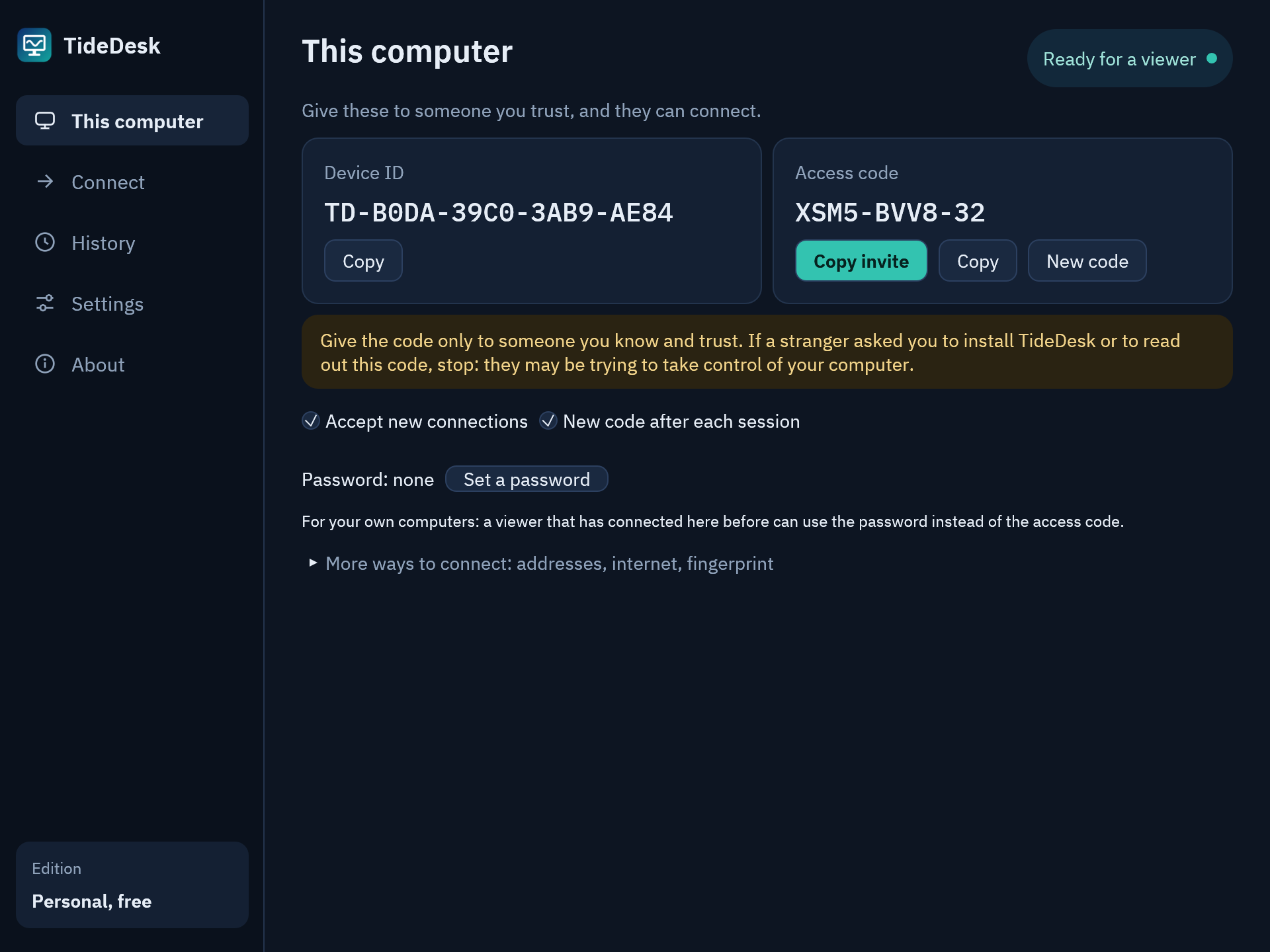
TideDesk’s This computer page: a device ID, an access code with Copy invite and New code buttons, and a warning to give the code only to someone you trust.
This computer. A device ID and an access code to give to someone you trust. The code changes after each session; for your own computers, set a password instead.
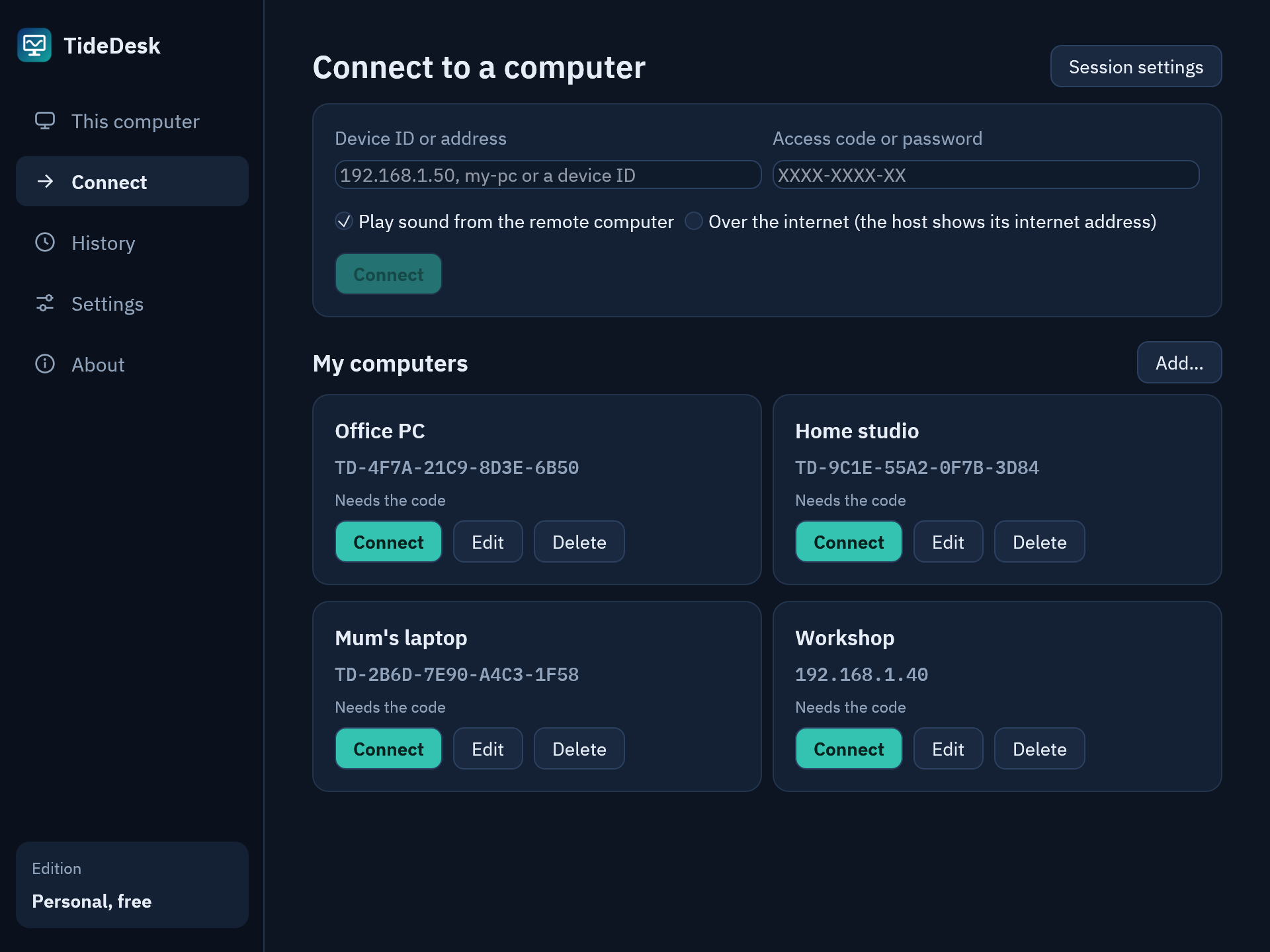
TideDesk’s Connect page: a box for a device ID or address and an access code, and four saved computers under My computers, each with a Connect button.
Connect. Type a device ID or an address, or pick one of My computers.
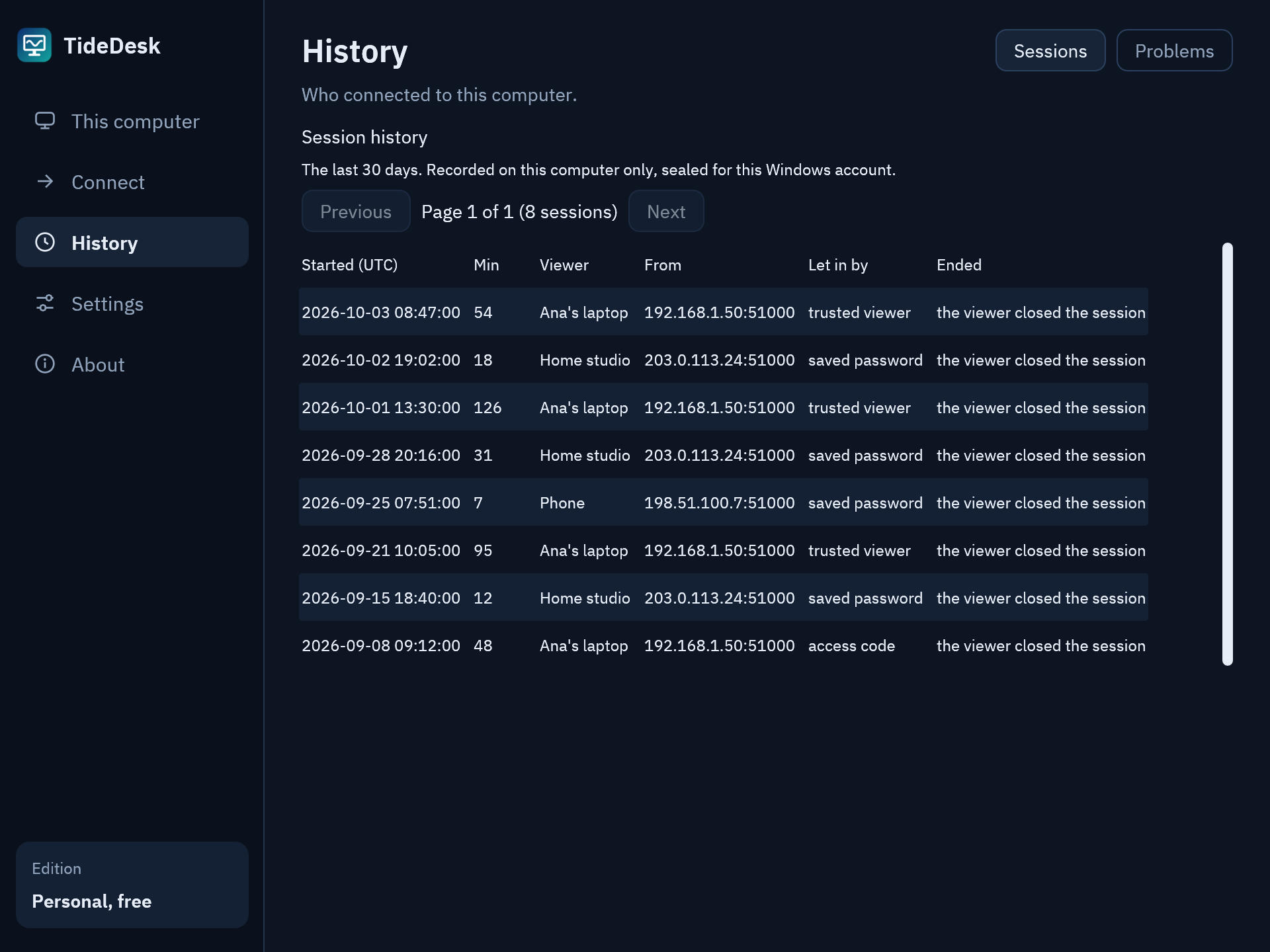
TideDesk’s History page: a list of eight sessions with when each started, how long it lasted, the viewer’s name and address, how it was let in and why it ended.
History. Who connected, when, for how long and how they were let in. It stays on this computer, sealed for your Windows account.
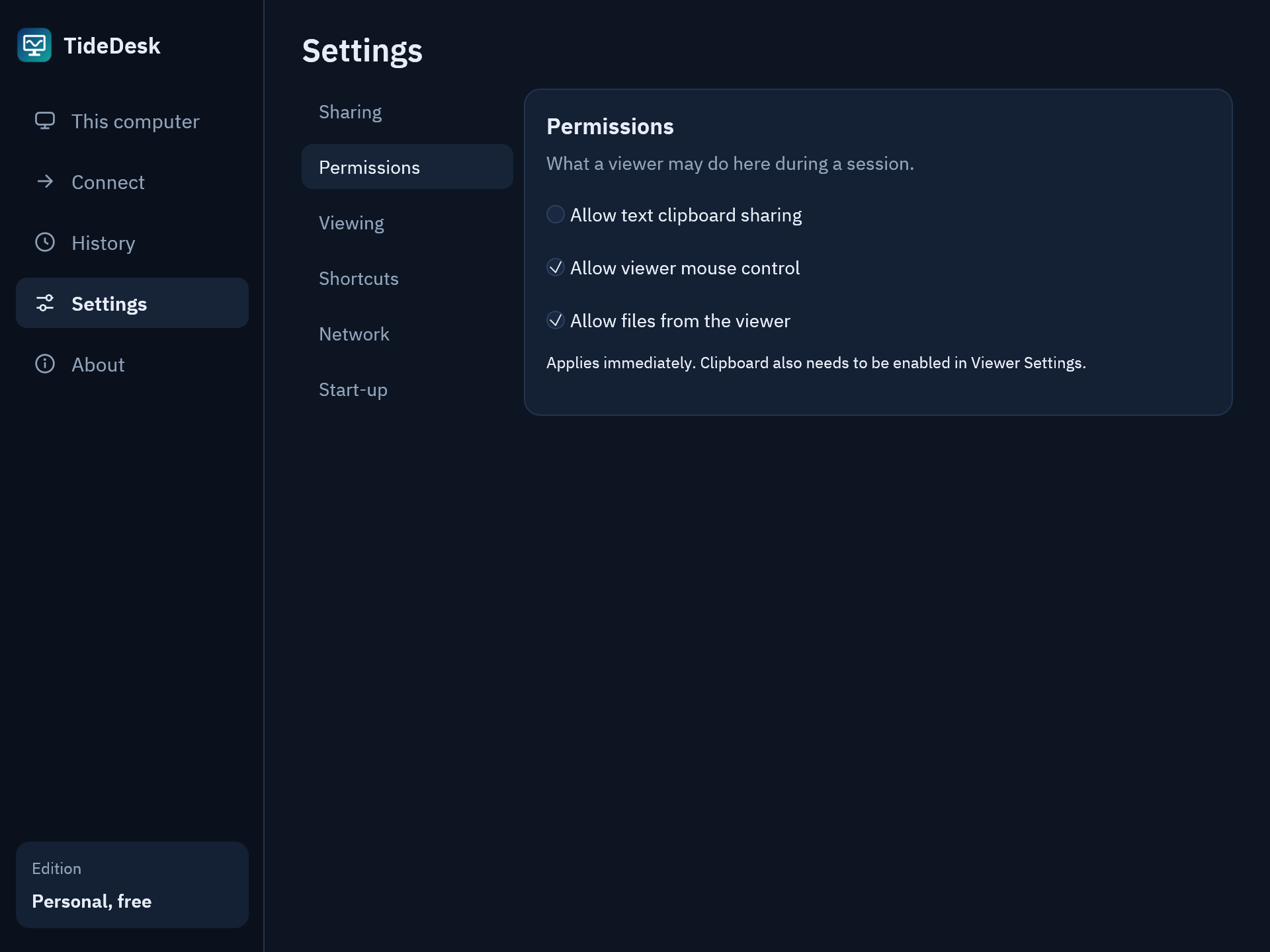
TideDesk’s Settings, Permissions page: switches for text clipboard sharing, viewer mouse control and files from the viewer.
Settings. You decide what a viewer may do here: the clipboard, the mouse, files.

TideDesk v0.1.0-alpha.13, drawn by the app itself with sample computers and sessions.

THE ESSENTIALS, TOGETHER

More than a picture
of your screen.

01 / SOUND

Hear what it plays.

System audio travels with your desktop. H.264 video and Opus audio share a direct QUIC connection, encrypted end to end with TLS 1.3. Since v0.1.0-alpha.8 the host encodes video on the graphics card where it has an H.264 encoder (AMD, Intel or NVIDIA), and falls back to software by itself. More about sound

02 / CONTROL

Choose what you share.

Toggle mouse control and optional text clipboard sharing with configurable shortcuts. Clipboard sharing starts off and requires permission at both ends.

03 / YOUR WORKSPACE

One app. Both computers.

One window, with This computer, Connect, History and Settings in its sidebar. Save regular connections under “My computers”. The app stays in the notification area (tray) when you close its window.

GET CONNECTED

From download to desktop.

Two Windows computers. The same app on each.

  1. 1

    Get TideDesk.

    Install from the Microsoft Store on both computers. Or extract the portable ZIP and run tidedesk.exe, with no installer needed.

  2. 2

    Share this computer.

    On the computer you want to reach, open TideDesk. This computer shows its device ID and access code. Note both, or press Copy invite.

  3. 3

    Connect to a computer.

    On the computer you’re sitting at, open TideDesk and select Connect. Enter the device ID (or its address on a local network) and access code. Nothing else to configure.

If a stranger asked you to install TideDesk and read out your code, stop. That is how remote-access scams work: the code lets the other person control your computer. Share it only with people you know and trust.

Device IDs work across the internet through TideDesk’s connection service, which only introduces the two computers; the session is always direct. On a local network you can also enter the host’s address. Some networks (mobile data, carrier-grade NAT) need a VPN or port forwarding. See the internet access guide.

BEFORE YOU CONNECT

A few things
to know.

Is TideDesk ready for everyday use?

It is an early alpha, not a production remote-administration tool. Automated checks run for releases, but real-world testing is still ongoing. One viewer can connect at a time. Report a problem on GitHub.

Why does Windows show “Unknown publisher”?

The GitHub ZIP executables are unsigned. Check your release notes for signing status and compare the SHA-256 checksum. A checksum checks file integrity; it is not a publisher signature. You can also install TideDesk from the Microsoft Store, which distributes a Microsoft-signed package. This does not sign the separate GitHub ZIP.

Does TideDesk relay my screen through a server?

Never. Every session runs directly between your two computers, encrypted end to end with QUIC and TLS 1.3. TideDesk’s connection service, rendezvous.tidedesk.app, only introduces them; it never carries your screen, audio, input, clipboard or access code.

What is a device ID and do I need an account?

No account is needed. The ID is the start of the host’s own certificate fingerprint. Connecting by ID needs no fingerprint question: a host whose certificate does not match is refused. It works on a local network and across the internet, including with headless hosts, subject to the same direct-connection limits.

Hosts register with rendezvous.tidedesk.app by default. Under Settings, Network, turn off “Reachable by device ID from other networks”. For hosts that do not use it, the manual “Over the internet” flow remains available: type each other’s internet address.

Why can’t I connect from mobile data?

Symmetric NAT, common on mobile data and carrier-grade NAT, prevents TideDesk from opening a direct path. Use a VPN such as Tailscale, or forward UDP 47800 on the host’s router where port forwarding is available. TideDesk never falls back to a relay. Read the mobile data guide.

Do I need the access code every time?

No, not for your own computers. Since v0.1.0-alpha.10 the code changes after each session. Set a password on the host, or press Trust this viewer during a session, and that viewer comes back with the password, or with no code at all. Neither computer ever sends the password, and three wrong ones lock that address out for a while.

Does it work without internet?

Yes, on a local network. Use the host’s address, shown under This computer in “More ways to connect”, or, since v0.1.0-alpha.8, its device ID: the viewer also asks its own network while it asks the connection service, and the host answers directly. Earlier releases need internet access for device IDs.

Someone I don’t know asked me to install TideDesk. What should I do?

Stop, and do not give them your access code or device ID. Remote-access scams work by talking people into installing a tool like this and reading out the code; with it, the caller controls your computer. Only ever share the code with someone you know and trust, on purpose.

Does it change my screen resolution?

No. The viewer starts at the host’s native pixel size when it fits, and scales down when needed. A 2560 × 1600 host can appear as a smaller window on a 4K display. You can resize the window without changing the host resolution.

Can I turn off mouse and clipboard sharing?

Yes. They have separate settings and configurable shortcuts. Defaults are Ctrl+Alt+C for clipboard sharing and Ctrl+Alt+M for mouse control while the remote window is focused. Clipboard sharing starts disabled. The host can also deny these permissions.

What is Game Boost?

Version v0.1.0-alpha.3 introduces an experimental, opt-in streaming preset. Enable it under Settings, Viewing, or with Ctrl+Alt+G. It targets 60 FPS with smaller audio/video buffers and can switch back to Desktop without reconnecting. Actual FPS depends on both computers and the connection; host resolution, bitrate and sharing permissions stay unchanged. The host encodes on the graphics card where it can; since v0.1.0-alpha.9 Intel graphics reach the 60 FPS too. Mouse input is desktop-style, without relative mouse capture for FPS game cameras. Two-computer gameplay and latency testing are still pending. Update both host and viewer: protocol v3 cannot connect to earlier v1/v2 builds.

Can I use my microphone on the remote computer?

Not currently. Audio is the host’s system sound sent to the viewer only. Microphone forwarding is not included, and no extra audio drivers are required.

What isn’t supported yet?

Linux and iOS clients are planned, not available; an Android viewer is an experimental preview. Several viewers at once are not supported. Clipboard sharing is text-only. TideDesk does not show or control Windows UAC prompts or the login screen; since v0.1.0-alpha.9 a prompt no longer ends the session, which goes on once the prompt is answered at the host. Two-factor sign-in and an encoder selector are planned, not implemented. See the technical roadmap; future features have no promised delivery date.

Should I update both computers?

Yes. Protocol v3 connects to v0.1.0-alpha.3 and later on a local network; internet and device-ID connections need both computers on a current release. Keep both computers updated through your chosen download channel. Store updates and GitHub releases are published separately. The Portable ZIP link points to the one version this site pins, and shows its SHA-256 next to it. If that is unavailable, the button opens the Microsoft Store instead.

Old shortcuts: since v0.1.0-alpha.8 the ZIP contains only tidedesk.exe. A start-up entry that ran tidedesk-host.exe moves to tidedesk.exe by itself; other shortcuts to tidedesk-host.exe or tidedesk-view.exe need to point to tidedesk.exe.
GUIDES

Know before you connect.

BEFORE YOU DOWNLOAD

Know what you’re running.

Code signing

The GitHub ZIP executables are unsigned. TideDesk is also available from the Microsoft Store as a Microsoft-signed package. Store signing applies to that package; it does not sign the separate GitHub ZIP.

TideDesk's maintainer reviews every release. See the repository’s code-signing policy for the build and approval process.

Privacy

Between your computers. The app sends screen, system audio, input and optional text clipboard data only between the two computers you connect. Settings are stored locally. Clipboard contents are not logged.

Finding an internet address (STUN). While running, the host asks public STUN servers (by default stun.l.google.com and stun.cloudflare.com) for its internet address about every 25 seconds. Each request is 20 bytes with no content; those servers learn the computer’s public IP address and port. The viewer asks once when it connects over the internet. This can be turned off or pointed at other servers in Settings.

Introductions by device ID. By default, the host registers its device ID, public certificate and public IP address and port with TideDesk’s connection service, rendezvous.tidedesk.app, refreshed about every 25 seconds. This lets the service introduce viewers who ask for that ID. A viewer connecting by device ID tells the service its own public address and which ID it asked for; a viewer that never connects by ID never contacts it. The service keeps this information in memory only, logs counts rather than IDs or addresses, and never carries sessions, access codes or any screen, audio, input or clipboard content. Registration can be turned off, or the service changed, in Settings.

Opening a direct path. Small “punch” packets (42 bytes, no content) go only to the address you typed or the one the service returned. The session runs directly between your computers; TideDesk never relays it through a server.

This website. This website adds no analytics scripts or cookies. When you open the home page it reads a small file from tidedesk.app itself, which names the portable ZIP offered there. Our hosting provider may also process technical request data to deliver and protect the site; see Cloudflare’s privacy policy.

Read the full privacy and code-signing policy.